TransD
What TransD is and how to get the most out of it.
Product Version: 2.0 · Last Updated: 11th October 2022
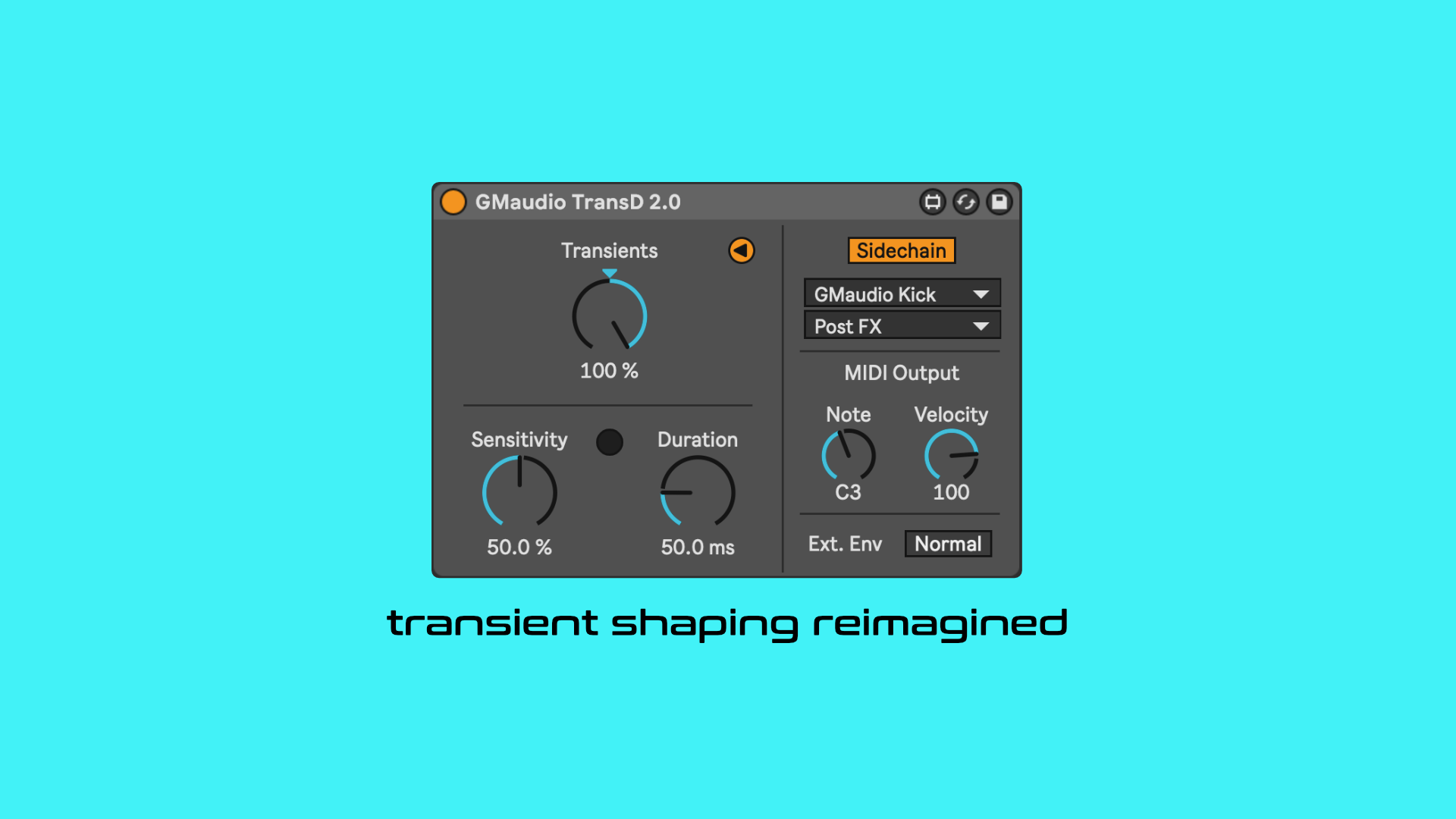
Concept
The original TransD was my first attempt at a dynamic processor using gen~ alas, it was a bit lackluster. It worked but it didn’t have a wide sweet spot and refined useability like modern GMaudio devices. I’ve since redesigned the entire device, improving upon the transient detection algorithm from GMaudio Ducker and came up with my own novel approach for a Transient Designer.
A transient can be defined as the start of a new sound and is usually less than 30ms in length. TransD 2.0 allows you to control the mix between these short bursts of sound and the original signal, with negative values attenuating them. The sensitivity control allows you to fine tune how many transients are ‘picked up’ by the algorithm and for each transient that is detected, a specialized envelope is generated to control the amplitude of the incoming signal. This is very different to a compressor which can only react when the amplitude reaches a threshold, with different sounds producing different envelopes that will never reach zero amplitude.
The result is that you can reshape the dynamics of the signal much more like you would on a synthesizer and nothing like you would with a limiter. It should be glaringly obvious at first use that this is a unique and useful tool that reaches beyond what is currently possible with Live. The uses for TransD 2.0 are further extended with a Sidechain Input, as well as MIDI and Envelope output that can be used to trigger or control sounds based on the transients of another. For example, you could use a drum loop to control the volume of a pad, trigger new drum sounds and control the filter on a bass, using a single instance of TransD 2.0. Not to mention, every parameter can be modulated and will affect all three sounds at the same time, how crazy is that? The creative potential for this device is unlike any other Transient Designer in existence.
I could bore you with all the technical nitty gritty of the sidechain filtering, transient detection algorithm and envelope custom designed for this device but instead I’ll say that I’ve tested nearly 100 iterations of this device to make it the most efficient, creative and musical Transient Designer out there. Careful considerations were made to reduce aliasing and distortions to avoid the need for oversampling so the output remains true to the source. Nearly everything is written in code for easier updating as well as superior efficiency and accuracy. The only thing left is for you to make some music with it!!
How to use it
GMaudio TransD 2.0 can be used on any signal where transient shaping is needed. Drums are a great place to start but any signal that has clearly defined transients will work. Unlike other transient designers, TransD 2.0 has been created for use on full range signals, so it can also be used on groups/buses or even full tracks.
Simply increase or decrease the ‘Transients’ dial to control the balance between ‘only transients’ or ‘no transients’. Setting ‘Transients’ to -100% will make it easier to hear if any transients are being ‘missed’ by the algorithm. Then, using the ‘Sensitivity’ dial, you can control how many transients are ‘picked up’ by the algorithm.
Adjusting the Sensitivity changes 7 internal parameters allowing it to work with a broad range of signals, ranging from no transients being detected to even the slightest changes being detected. The blue LED in the middle of the interface indicates when a transient has been detected.
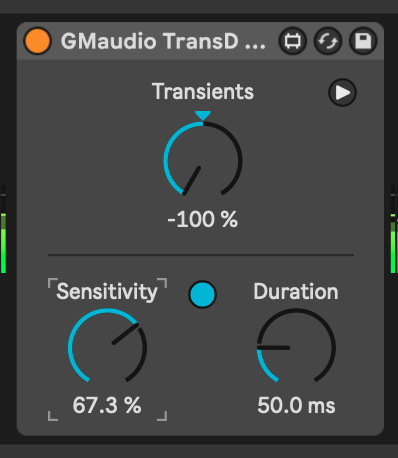
Adjusting Sensitivity on TransD 2.0
‘Duration’ controls the length of the envelope triggered by the transient detection, ranging from 10ms to 1 second, allowing it to be used for glitchy percussion or controlling long synth stabs and SFX.
Clicking the Unfold icon expands the user interface to show the External Input and Output settings.
With the ‘Sidechain On’ enabled and a suitable track selected from the menu below it, you can have TransD 2.0 control the amplitude of the incoming signal based on the transients of the selected track. This allows you to add rhythm to legato sounds or accent existing sounds with new tones and textures.
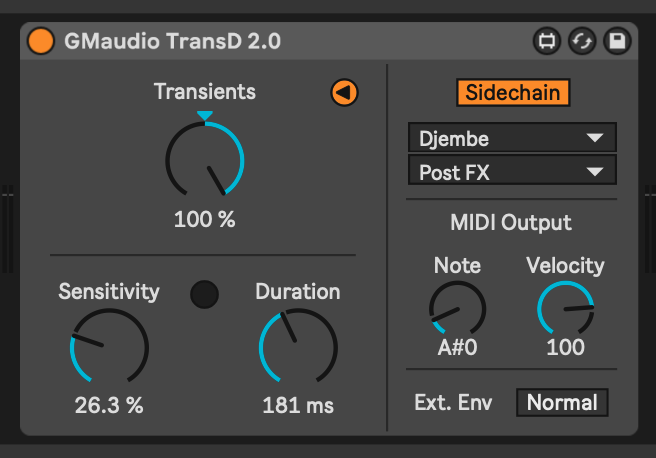
TransD 2.0 unfolded with External Sidechain enabled and a suitable track selected
MIDI Note and Velocity dials allow you to control the MIDI output from the device. This could be used to trigger a synth or drum sound and is utilized by selecting GMaudio TransD 2.0 via the ‘MIDI From’ menu of a MIDI Track. Please note, Live 11 is required for MIDI output.
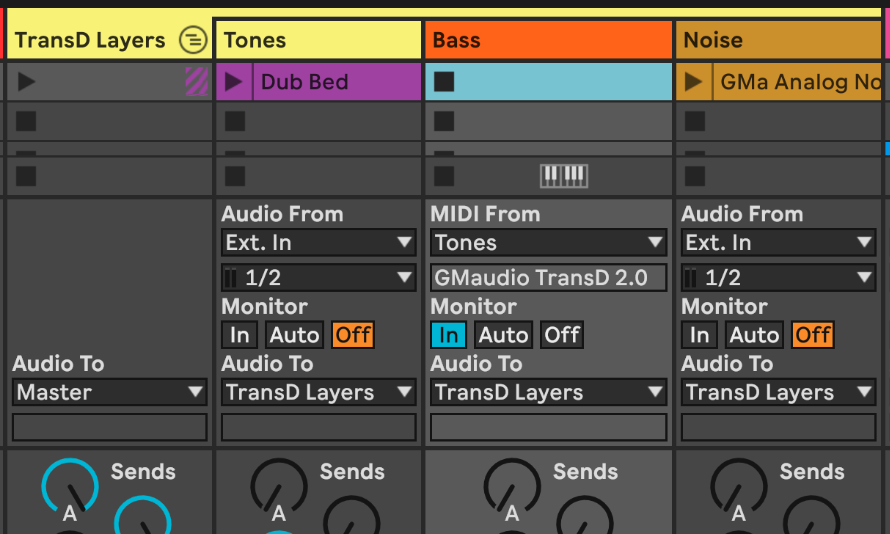 *Bass synth being MIDI triggered by TransD 2.0 on the track labeled ‘Tones’*
Finally, the envelope generated by TransD 2.0 is also output and can be accessed via the ‘Audio From’ menu of an Audio Track. The ‘Ext. Env Mode’ button controls whether the ‘only transients’ or ‘no transients’ envelope is output. This could be sent out of a DC coupled interface to use as a modulation source for a modular synthesizer or selected by another effect with a sidechain input.
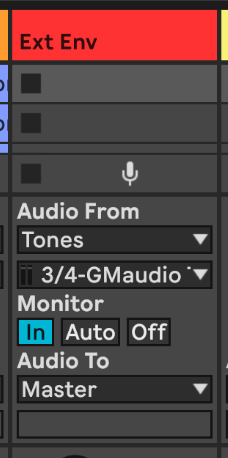
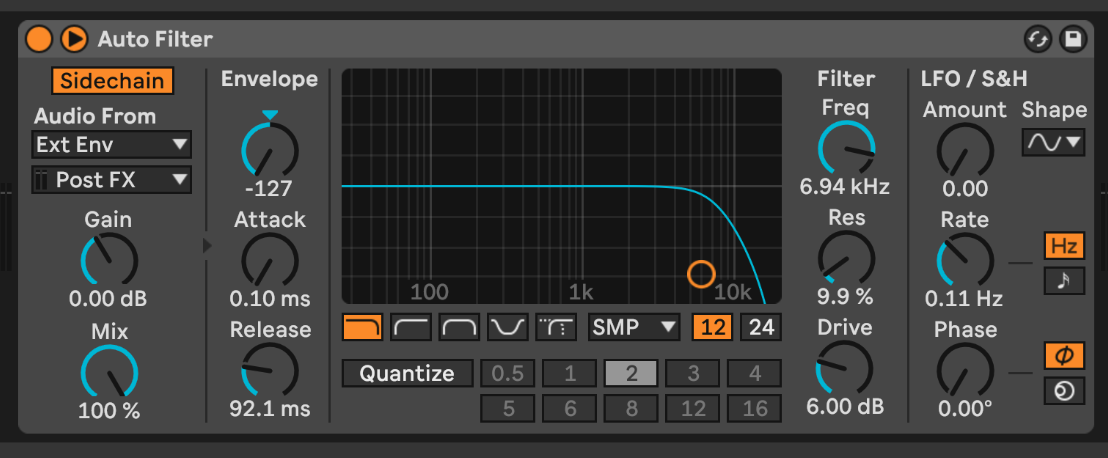
Left: External Envelope from TransD 2.0 routed to an Audio Track for use by other devices
Right: An Auto Filter with the External Envelope being used for its Sidechain Input
Controls
Transients controls the balance between ‘no transients’ and ‘only transients’
Sensitivity controls how many transients are ‘picked up’ by the transient detection
Duration controls the decay time of the transient envelope and the length of the MIDI note output
Unfold Displays the External Input and Output parameters
Sidechain when enabled, uses the selected track as the sidechain input
Note sets the pitch of the MIDI Output (Live 11 Only)
Velocity sets the velocity of the MIDI Output (Live 11 Only)
External Envelope selects whether the ‘only transients’ (Normal) or ‘no transients’ (Inverted) envelope is output
GMaudio TransD 2.0 is Push Ready with relevant controls being accessible via an Ableton Push.
Latency
GMaudio TransD adds 128 samples of ‘lookahead’. This is used for the attack segment of the envelope to reduce aliasing and distortion.
Tips
The default settings should work well for lots of material but quite often ‘Sensitivity’ will need adjustment as small changes can have a big impact. Signals that are very loud or quiet will require more care when adjusting this parameter, try holding Shift while moving the dial for finer control.
A great way to use TransD 2.0 is within an Audio Effect Rack with two chains, one for ‘Only Transients’ and another for ‘No Transients’. This allows different processing for different parts of the sound and pairs well with VSEQ for quick tonal shaping and saturation. For instance, you could add more mids to the transient of a Kick so it cuts through the mix but attenuate the mids from the rest of the sound to make room for melodies and vocals. When doing this it helps to map both Sensitivity and Duration to Macros so that both instances of TransD 2.0 are using the same transient detection settings. This concept can be used with any type of processing such as reverb, delay, pitch shifting, bit crushing and more… so don’t be afraid to experiment.
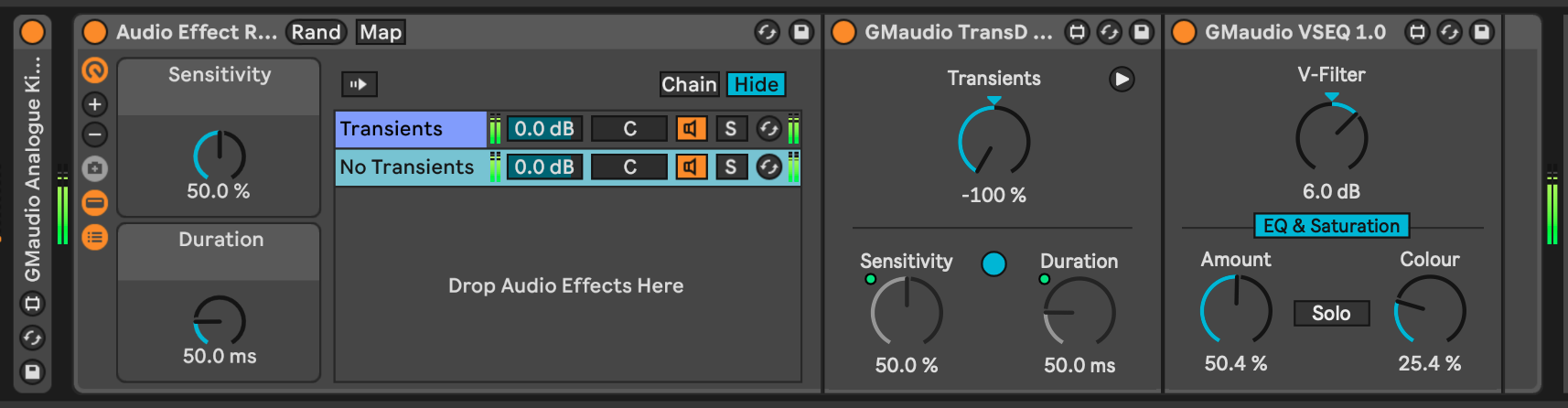
Example Device Chain using TransD 2.0 for processing different parts of the sound independently
As discussed on page 2, one instance of TransD 2.0 could effectively be used to control 3 different sounds in different ways, an example of this will be shown on my youtube channel. In an effort to spark more ideas, you could apply Trans D 2.0 to any sub-bass, voice, noise, texture or melody and use anything percussive such as a recording, loop or kick drum as the sidechain input, to rhythmically add the input on top of the sidechain input… or mute the sidechain input and simply add rhythm to sounds that don’t have any. You could even use a Microphone (piezo mic or vocal) as the Sidechain input and just use the MIDI output to trigger synths or samples.
If you find an interesting way to use GMaudio TransD 2.0, let me know or make a video for social media with the tags #gmaudio #fixationstudios #transd2point0 and I’ll find you and give you some freebies if I like the content :D